
by zhangxinxu
1. What Two-End Alignment for List Elements Means
First, let’s talk about what two-end alignment is. The screenshot below is the right edge of a left-aligned English paragraph in Word: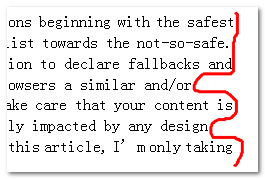
As you can see, the right side is ragged. Now select the text and click the justify button at the top of Word, as shown below:
The right edge of the text then looks like this: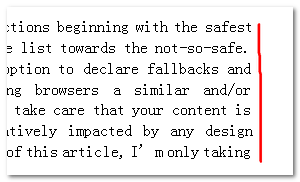
The right side is now perfectly aligned, meaning the whole block of text is displayed flush against both the left and the right edge. And here, “list elements” refers to repeated list elements with a similar structure, for example the image list on QQ Alumni:
Two-end alignment for list elements means that the first element of each row lines up with the left edge of the parent container, and the last element lines up with the right edge of the parent container. For example, the hot-selling items on the Taobao homepage, or the popular shares list on Renren (screenshot below):
I think that when we build pages day to day, we often get design mockups with comfortable two-end aligned list elements too.
2. How to Achieve Two-End Alignment for Elements
In CSS2, text-align has a value called justify, which means “align to both edges”. What it achieves is making a line of text display aligned at both ends (the text content must exceed one line). If your browser’s address bar starts with http://www.zhangxinxu.com/, you’ll find that every one of my articles is displayed justified, so sometimes the text ends up looking very sparse, as shown below.
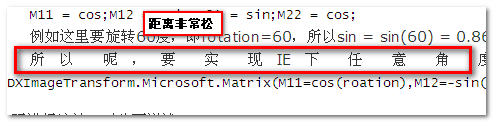
The purpose text-align was created for is controlling the alignment and display of text — you can tell that from the property name. From how it renders and parses, it is mainly used to control the alignment and display of inline-level elements or inline-block elements, such as text nested inside inline tags, images, input form controls, and so on; it has no effect on block-level elements. So, for list elements, in theory we could just make the originally block-level list elements inline or inline-block and easily achieve two-end alignment. In practice, though, making them inline is clearly impossible, because you can’t give list elements a fixed width and height or set vertical spacing — the list elements would be a puddle of mud, useless for building a house; and making them inline-block also faces obstacle after obstacle, because IE6/7 doesn’t truly support the inline-block property. So what looks simple in theory still needs careful planning in practice.
3. How Two-End Alignment for List Elements Is Done Today
There are plenty of methods. ① First, look at the example of the hot-selling items on the Taobao homepage, shown in the screenshot below:

Its list layout uses the traditional float layout, and it forces the parent container wider via the width property to produce the apparent “two-end alignment” effect.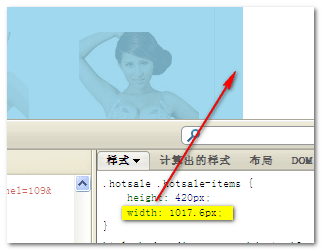
② Next, look at how Renren’s popular shares achieve the two-end alignment effect. As I mentioned in my earlier article “List layout based on display:inline-block“, the list layout on Renren here is an inline-block layout.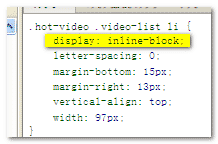
It also achieves the apparent “two-end alignment” effect by widening the parent tag, but it doesn’t widen it through the width property — it uses a negative margin (I personally recommend a negative margin over a fixed width):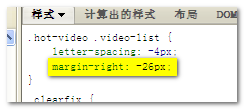
③ There is also a method using white-space: nowrap. This method has to be used on top of an inline-block layout, and is generally used to achieve the apparent “two-end alignment” effect for single-row list elements. white-space: nowrap forces list elements not to wrap, so you don’t need to set the width of the parent tag container or widen the parent container with a negative margin or the like. I won’t go into detail here; someday I’d like to properly discuss white-space: nowrap, a very useful CSS declaration. Those are the common methods today for achieving the apparent “two-end alignment” effect for list elements. So, isn’t each one of them a hassle — first, arranging the list elements is already troublesome in itself (fixed width, computing spacing), then you have to artificially widen the parent container, and on top of that the ancestor elements need overflow hidden (overflow:hidden), oh, my lady gaga. I think that’s why there are ranting front-end engineers on the web roaring about overtime (about that picture, you can click
here
to view it). In fact, all this work can be done while drinking coffee and browsing Weibo — the key is to use text-align:justify to do the two-end alignment layout.
4. The Benefits of text-align:justify for Two-End Alignment
The benefit is that it’s simple and convenient. With just one simple text-align:justify declaration, the elements inside automatically lay out evenly spaced and aligned at both ends! There’s no need to calculate the margin spacing between each list element, let alone modify the parent container’s width.
5. About display:inline-block List Layout
The content of this article is based on display:inline-block list layout, so if you only know float layout I suggest you carefully read my earlier article “Goodbye, float layout – display:inline-block based list layout“. That article explains in great detail the past and present of display:inline-block list layout, and I believe you’ll get a lot out of it. You may have noticed that at the end of that article I already briefly mentioned two-end alignment under text-align:justify. However, there I only showed a simple example; I did not elaborate on some display issues (such as the tragic last row), nor on the caveats for implementing it in IE6/7 and IE8. This article is here to solve those problems.
6. Two-End Alignment Layout for Lists with display:inline-block/text-align:justify
For the sake of clear logic, let’s set IE6 and IE7 aside for now and look at how IE8+ and modern browsers achieve two-end alignment of list elements with display:inline-block + text-align:justify. It’s actually very simple. Let’s take the most common list tags — ul and li — as an example. To achieve two-end alignment of the li list, this little bit of CSS is all you need:
ul{text-align:justify;}
li{display:inline-block;}
So simple it makes you spit three pints of blood on the spot. The only thing to watch out for is that the list elements must have whitespace (or a line break) at the start and end tags, as shown below: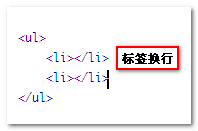
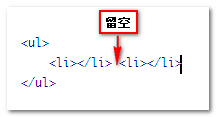
The closing tag of one tag group must not be joined directly to the opening tag of the next tag group, as shown below:
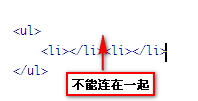
What’s more, in IE8 the list elements must not sit in a font-size:0 environment — at least font-size:1px, because IE8 wipes out the newline whitespace or ordinary whitespace when font-size:0, making two-end alignment impossible. OK, now for the main event: the tangled IE6/IE7 browsers. Clearly the ul, li style combination above doesn’t work in IE6/7 — even if you use a hack to give the li tag inline-block-like behavior in IE6/7, it still won’t help. So how can list elements in IE6/7 also support the text-align:justify property? After repeated testing and debugging, I summarized two points: inline tag-ification and consecutive closing tags. 1. Inline tag-ification By “inline tag-ification” I mean the list elements need to use inline-level tags, such as span, a, strong, em, and so on; tags like li and div won’t do. 2. Consecutive closing tags By “consecutive closing tags” I mean the closing tags of the list elements and their inner tags need to be joined together. For example, the following won’t work:
<span>
    <a href="#">
        <img src="test.jpg" />
    </a>
    <span>描述</span>
</span>
It should look like this instead:
<span>
    <a href="#">
        <img src="test.jpg" />
    </a>
    <span>描述</span></span>
We’re used to structured indentation, so writing consecutive closing tags like that looks unnatural and a bit awkward. But there’s no way around it if you want the effect. Note: if the list tags are nested multiple levels deep, the closing tags at every level must be consecutive. Once IE6/IE7 satisfies both inline tag-ification and consecutive closing tags above, plus the whitespace around start and end tags required by modern browsers, IE6/IE7 can also achieve two-end alignment for list elements! To make it easier to see at a glance what to watch out for in each browser, I’ve made the following table:
Caveats for implementing two-end alignment layout under text-align:justify in each browser
Browser
Caveats
IE6
inline-level list tags, consecutive list closing tags, line break or whitespace between list elements
IE7
inline-level list tags, consecutive list closing tags, line break or whitespace between list elements
IE8
line break or whitespace between list elements, the font size of the list elements’ environment must not be 0
Modern browsers
line break or whitespace between list elements
However, there’s still one tragic problem unsolved: the tragedy of when the last row of list elements can’t be aligned at both ends. As shown below:

Actually this problem is very easy to solve. How to turn tragedy into comedy? For a list (or text) to be justified, the content must exceed one line. So to solve the problem of the last row not being aligned at both ends, all you need is to create a transparent inline-block tag layer at height 0 and width 100% at the end of the list (or text block), for example:
.justify_fix{display:inline-block; width:100%; height:0; overflow:hidden;}
With HTML like:
For example, take the earlier demo with the tragic last row: now add the span element with the class name justify_fix above to the end of that demo’s list, and the last row becomes justified, as the change shows below:
No matter what version of browser you have, you can click right here:
Demo of a beauty list with the last row justified too
Change the browser width and you can see the two-end alignment effect more directly. Addition on 2011-03-16: Often we want the last row of the list to be left-aligned rather than justified — what do we do then? The principle is the same as the two-end alignment above. Just copy a few of the outer tags of the list elements, same width but height 0, with an inside (indispensable). The number of copies is generally the number of list elements per row, which guarantees the last row of elements will be left-aligned! HTML code as below:
<div class="box">
<span class="list"><img src="http://image.zhangxinxu.com/image/study/s/s128/mm9.jpg" />
哇哦,美女,口水,鼻血~~~</span>
<span class="list"><img src="http://image.zhangxinxu.com/image/study/s/s128/mm9.jpg" />
哇哦,美女,口水,鼻血,不行了,我的小兔乱撞~~</span>
.
.
.
<span class="list left_fix"> </span>
<span class="list left_fix"> </span>
<span class="list left_fix"> </span>
<span class="list left_fix"> </span>
<span class="list left_fix"> </span>
</div>
The left_fix style in the HTML above is as follows:
.left_fix{height:0; padding:0; overflow:hidden;}
The result is that the last three images, previously aligned with equal width, are now vertically aligned with the elements above and left-aligned! (The screenshot below is from IE7.)
You can click right here:
Demo of last-row elements arranged left-aligned
So, combining everything discussed above, we can achieve a relatively perfect two-end alignment effect for list elements under text-align:justify.
7. A Working Example of Two-End Alignment under text-align:justify
Let’s take the inline-block list layout from Renren’s popular shares above as an example. You can click right here:
Demo of two-end alignment under text-justify for Renren’s popular shares list
The effect is shown below (screenshot from IE7):

The CSS code is as follows:
.video-list{width:540px; margin-left:auto; margin-right:auto; text-align:justify;} /*list parent container*/
.text-justify-list{display:inline-block; width:97px; margin-bottom:15px; text-align:left; vertical-align:top;}/*list element*/

.
. /\* full Renren CSS code*/
.

.justify_fix{display:inline-block; width:100%; height:0; overflow:hidden;}/*last-row tragedy becomes comedy*/
As you can see, the list elements have no vertical margin or padding set at all — just a width — yet the list elements are indeed aligned at both ends with even spacing. No calculations, no deliberately widening the parent container; it’s implemented super simply. Comparing with the caveats mentioned above, let’s see how the HTML code in this example puts them into practice:
① inline-level tags As shown in the screenshot: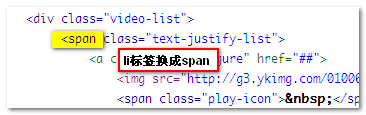
② consecutive list closing tags As shown below: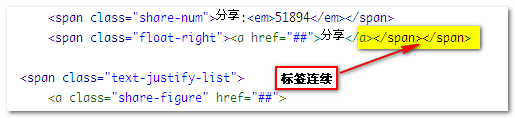
③ line break or whitespace between list tags As shown in the screenshot: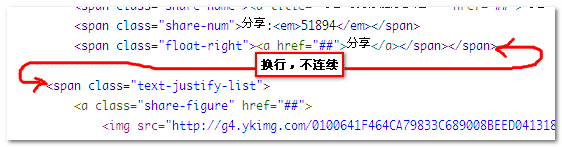
That way, you too can easily achieve two-end alignment layout for list elements, without worrying about compatibility issues!! GO! Go ahead and use it!
8. A Few Closing Words
First, about why IE6/IE7 list elements need inline-level tags and why the closing tags need to be consecutive — I don’t know the reason either. I didn’t develop the browsers; if you want to ask, go ask Mr. Gates. Second, the semantic issue. To accommodate IE6/IE7, list tags like ul and li become unusable, so the HTML semantics may drop in quality. The trade-off is in your hands. Finally, these are all things I found through my own testing. Maybe you have a better method, or can explain some of the weird behavior in IE6/IE7 — feel free to discuss in the comments. My experience is limited, so there are bound to be inaccurate statements in this article; corrections are welcome. Original article — please indicate the source when reprinting: Zhang Xinxu - Xin Space - Xin Life[http://www.zhangxinxu.com]